I’ve been using Zoho for my personal email for years, and I love it. I moved for a few reasons, privacy being a big one. If you’re not paying for the product, you are the product! I had used Gmail since it came out in college, and it was time to take control of my online privacy and data security.
After moving to Zoho, I found that they also had fantastic customer support! I can file a ticket and get a human response who actually helps to resolve my question. It’s been such a breath of fresh air.
Recently, I started co-teaching a product management class at Rice. As part of that, I re-activated my rice.edu email address. Rice uses Google for their email handling, so I added that email into my Zoho account as an additional IMAP email connection.
This lets me check my rice.edu email from the same zoho web app that I use for my personal email, while still keeping the two email inboxes and emails separate. It’s been wonderful, and I do this for a few other email accounts as well.
What was odd – emails in my Rice account were appearing twice in Zoho (!) while my other IMAP added accounts were behaving just fine. I contacted Zoho support, who suggested this was an issue on the Google side, and recommended I find the message identifiers to confirm if these were “different” emails or not – this could help diagnose the issue.
I found the exact same message id, and exact same .eml contents for the duplicate emails. I noticed while doing this – one email was in Inbox and the other was in Important.
I remembered that Gmail uses labels instead of folders, and this can cause strange side effects for IMAP clients. I talked out my problem and evidence so far with Claude, which suggested I change Gmail’s IMAP settings. I found the toggle in Gmail settings → full settings → labels → IMAP access and turned it off for the Important label.
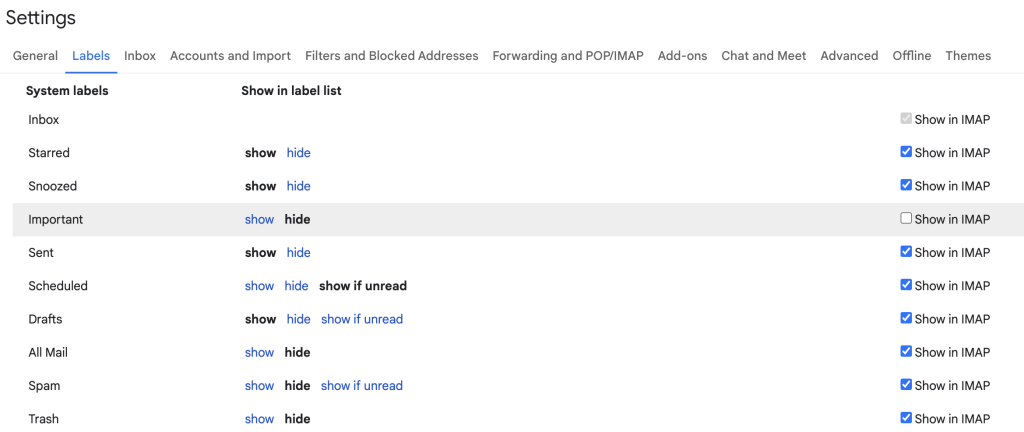
Next sync – tada! Zoho removed all the duplicates from that Important flag and is correctly showing only a single email in my Unread filter.
Wins: Zoho support for helping me find clues, AI for helping me diagnose the issue with those clues, Gmail for having the correct settings to undo their non-standard IMAP implementation, and Zoho for a stellar email product!